 Skip to content
If you’re running Google Ads and relying on standard GA4 tracking, you’re probably losing conversion data. Safari’s Intelligent Tracking Prevention blocks cookies after seven days. Firefox Enhanced Tracking Protection does the same. Ad blockers strip your tracking pixels entirely. Even Chrome’s Privacy Sandbox is limiting what you can track. The result? Your Google Ads campaigns report fewer conversions than actually happened. Your attribution is broken. You’re making decisions based on incomplete data.
Server-side tracking solves this problem by moving data collection from the user’s browser to your own server. This bypasses browser restrictions, improves data accuracy, and gives you complete control over what gets tracked. This guide walks you through exactly how to set up GA4 server-side tracking for Google Ads. You’ll learn what it is, why it matters, and how to implement it step by step, even if you’re not a developer.
Why Server-Side Tracking Matters for Google Ads in 2026
Privacy regulations and browser restrictions have fundamentally changed how digital advertising works. Traditional client-side tracking, where JavaScript tags fire in the user’s browser, is becoming less reliable every year.
Here’s what’s breaking your tracking right now:
Cookie blocking: Safari, Firefox, and Brave block third-party cookies by default. This means your Google Ads conversion tracking stops working for a huge portion of your audience.
Ad blockers: Over 40% of internet users run ad blockers that prevent tracking scripts from loading. These visitors are invisible to standard analytics.
iOS 14+ restrictions: Apple’s App Tracking Transparency requires explicit permission to track users. Most people decline, creating massive blind spots in your data.
GDPR and privacy laws: Regulations require explicit consent for tracking, and consent rates are dropping. Without consent, you can’t track behavior or attribute conversions properly.
For Google Ads advertisers, these restrictions mean underreported conversions, broken attribution, and bad optimization decisions. You might pause a profitable campaign because the data says it’s not converting, when actually the tracking is just broken. Server-side tracking fixes this by collecting data on your server instead of the browser. Since the data never passes through the user’s device for processing, it bypasses most privacy restrictions while still respecting user consent.
What Is GA4 Server-Side Tracking?
Server-side tracking is a method where your website sends data to your own server first, and then your server forwards it to Google Analytics 4 and Google Ads.
Here’s how it differs from standard tracking:
Standard (client-side) tracking: JavaScript runs in the user’s browser → Sends data directly to Google → Browser restrictions can block this → Data loss occurs
Server-side tracking: JavaScript sends data to your server → Your server processes and enriches data → Server forwards data to Google → No browser restrictions → Better data accuracy
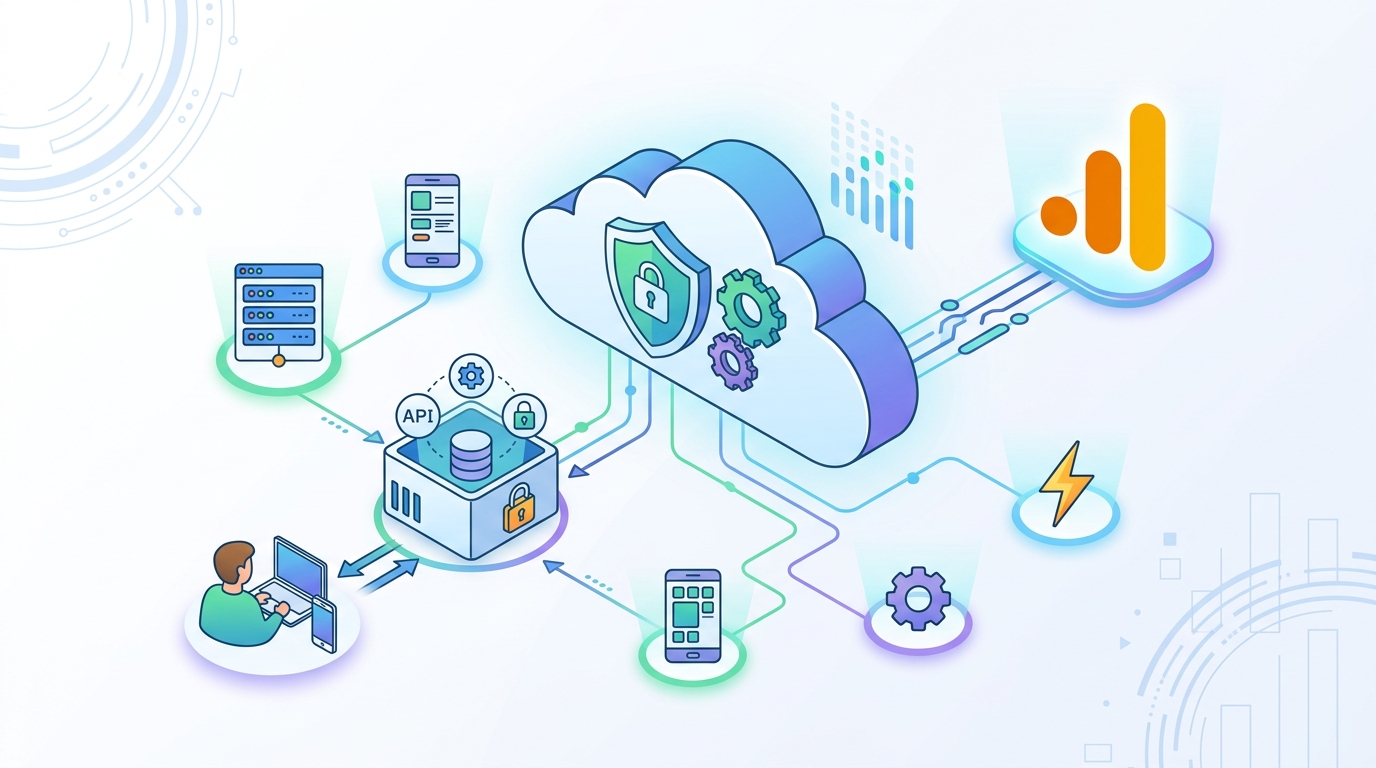
Think of it like having your own secure pipeline directly to Google. Instead of relying on the user’s browser to send information correctly, your server handles the heavy lifting. The technical setup uses Google Tag Manager Server-Side, which acts as a middleman container that receives data from your website, processes it, and then distributes it to various platforms, including GA4 and Google Ads.
Benefits of GA4 Server-Side Tracking for Google Ads
Server-side tracking delivers concrete improvements to your Google Ads performance and data accuracy.
More Accurate Conversion Tracking
When tracking runs on your server, ad blockers and browser restrictions can’t interfere. You’ll capture 20-40% more conversions that would otherwise go unreported. This means Google Ads gets a better signal about what’s actually converting, leading to smarter automated bidding decisions.
Better Attribution
Server-side tracking maintains user identity longer since you’re not relying on browser cookies that expire quickly. This improves multi-touch attribution, showing you the complete customer journey from first click to conversion across multiple sessions and devices.
Improved Page Speed
Moving tracking scripts from the browser to your server reduces JavaScript execution time. Pages load faster, which improves user experience and can positively impact both conversion rates and quality scores in Google Ads.
Data Enrichment
Your server can add information that browsers can’t access. Append customer lifetime value, combine online and offline data, match email addresses to conversions, or add custom business metrics before sending data to Google Ads. This creates more sophisticated audience segments for remarketing.
Greater Control and Security
You decide exactly what data gets sent to Google. Filter out sensitive information, hash personal data before transmission, and maintain complete audit trails. This helps with GDPR compliance while still powering effective remarketing and conversion optimization.
Want to unlock more accurate conversion data for your Google Ads campaigns? Explore my PPC optimization services to see how proper tracking implementation can transform your results.
GA4 Server-Side Tracking Setup Requirements
Before you start setting up server-side tracking, make sure you have these components in place:
Technical Requirements
- Active GA4 property with measurement ID
- Google Tag Manager account with web container already installed
- Access to your domain’s DNS settings
- Google Cloud Platform account (free tier works initially)
- Basic understanding of Google Tag Manager
The main cost is hosting. Google Cloud charges approximately $40-120 per month for server-side tracking, depending on your traffic volume. The free tier covers low-traffic sites initially.
What You’ll Need Access To
- Admin access to Google Analytics 4
- Publish permissions in Google Tag Manager
- Permission to create DNS records for your domain
- Google Ads account admin access for conversion linking
If you don’t have these permissions, you’ll need to coordinate with your IT team or website administrator before proceeding.
Step-by-Step GA4 Server-Side Tracking Setup for Google Ads
Follow these steps carefully. The process takes 30-60 minutes if you have all the requirements ready.
Step 1: Create Server-Side Container in Google Tag Manager
Log in to Google Tag Manager and click Create Account or use your existing account. Instead of choosing Web Container, select Server Container type. Give it a descriptive name like ‘Server Container – YourSite.com’ and note the container ID (starts with GTM-XXX).
Once created, you’ll see setup instructions. Choose ‘Automatically provision tagging server’, which uses Google Cloud Platform.
Step 2: Set Up Google Cloud Platform Server
Click the link to automatically provision your server. This creates an App Engine instance in Google Cloud. You’ll need to enable billing on your GCP account, but don’t worry – the costs are predictable and start low.
After provisioning completes, you’ll receive a tagging server URL that looks like: https://[random-string].appspot.com
Copy this URL. You’ll need it for the next step.
Step 3: Configure Custom Domain (Recommended)
Using a custom subdomain improves tracking reliability. Choose a subdomain like analytics.yourdomain.com or tracking.yourdomain.com.
In your DNS settings, create a CNAME record pointing your chosen subdomain to your App Engine URL. Wait 5-10 minutes for DNS propagation.
Back in the GTM Server Container settings, add your custom domain. GTM will verify ownership and set up SSL automatically.
Step 4: Update Web Container to Send Data to Server
Go to your existing Google Tag Manager web container. Find your GA4 Configuration tag.
In the tag settings, expand ‘Fields to Set’ and add a new field: server_container_url with value https://analytics.yourdomain.com (your custom domain from Step 3).
This tells your website to send data to your server instead of directly to Google.
Step 5: Create GA4 Tag in Server Container
Switch to your Server Container in GTM. Create a new tag and choose ‘Google Analytics: GA4’ as the tag type.
Set the trigger to ‘All Events’ so every event sent from your website gets forwarded to GA4.
No other configuration is needed for basic setup – the tag automatically reads the measurement ID from the incoming data.
Step 6: Set Up Google Ads Conversion Tracking
In your Server Container, create another tag. Choose ‘Google Ads Conversion Tracking’ as the type.
Enter your Google Ads Conversion ID and Conversion Label (find these in Google Ads under Tools > Conversions).
Set the trigger to fire on specific events that represent conversions, like ‘purchase’ or ‘form_submit’, depending on your setup.
Step 7: Test Your Implementation
Before publishing, use Preview mode in both your web and server containers.
Start preview mode in the server container first, then the web container. Navigate your website and trigger test conversions.
In the server container debug panel, verify that events are arriving from your website and being forwarded to GA4 and Google Ads successfully.
Check GA4 real-time reports to confirm events are appearing. Test a conversion and verify it shows up in Google Ads within a few hours.
Step 8: Publish and Monitor
Once testing confirms everything works, publish both containers – web container first, then server container.
Monitor your GA4 reports for the next 24-48 hours to ensure data flows correctly. Compare event counts before and after implementation to verify nothing broke.
Watch your Google Cloud billing to understand actual costs based on your traffic.
Server-side tracking setup feeling overwhelming? Let me handle the technical implementation so you can focus on running profitable campaigns with accurate data.
Common Mistakes to Avoid in Server-Side Tracking
Server-side tracking setup has several pitfalls. Here are the mistakes I see most often:
Not Using a Custom Domain
Relying on the default appspot.com domain reduces tracking accuracy because some browsers treat it as third-party. Always set up a first-party subdomain on your own domain. The extra 10 minutes of DNS configuration is worth it.
Forgetting to Update Web Container
Creating the server container is only half the work. If you don’t update your web container to point to the server, data never reaches it. Make sure you add the server_container_url field to your GA4 configuration tag.
Publishing Without Testing
Always test in preview mode before publishing. A small configuration error can break all your tracking. Verify events flow correctly through the entire chain: website → server container → GA4 → Google Ads.
Ignoring Cloud Costs
Server-side tracking costs money for hosting. Set up budget alerts in Google Cloud Platform so unexpected traffic spikes don’t surprise you with big bills. Monitor usage weekly during the first month to understand your baseline costs.
Not Handling User Consent Properly
Server-side tracking doesn’t magically solve GDPR compliance. You still need user consent before collecting data. Implement consent mode in GA4 and only send data to the server for users who’ve given permission.
Duplicating Tags
Don’t run both client-side and server-side GA4 tags simultaneously unless you specifically need dual tagging for migration. This creates duplicate events and inflates your numbers, making data useless for optimization.
When to Use a Professional Server-Side Tracking Setup
Server-side tracking isn’t overly complex, but certain situations benefit from professional implementation.
You Should Hire an Expert If:
You’re spending over $10,000 monthly on Google Ads, where tracking accuracy directly impacts ROI
- You need custom data enrichment or integration with CRM systems
- Your business operates in heavily regulated industries requiring strict data governance
- You’re running complex multi-platform campaigns requiring precise attribution
- You attempted to set yourself up, but can’t get data flowing correctly
- You don’t have time to learn GTM server-side architecture
Professional implementation typically costs $1,500-5,000, depending on complexity, but saves weeks of trial and error, plus ensures optimal configuration from day one.
What Professional Setup Includes
A proper professional implementation should provide:
- Complete server infrastructure setup and optimization
- Custom domain configuration with SSL
- GA4 and Google Ads integration with conversion tracking
- Data quality checks and validation
- Documentation of setup and ongoing maintenance guidelines
- Training on monitoring and troubleshooting
The investment pays for itself quickly through improved conversion tracking and better campaign optimization decisions.
Ready to implement server-side tracking the right way? Contact me at osamanaseem.com for a professional GA4 server-side tracking setup that delivers accurate data and drives better Google Ads performance from day one.
Frequently Asked Questions
What is GA4 server-side tracking?
GA4 server-side tracking sends data from your website to your own server first, then your server forwards it to Google Analytics 4 and Google Ads. This bypasses browser restrictions like ad blockers and cookie blocking, improving data accuracy by 20-40% compared to standard client-side tracking.
How much does server-side tracking cost?
Google Cloud Platform hosting costs approximately $40-120 per month, depending on your website traffic volume. Low-traffic sites start at around $40/month, while high-traffic sites may reach $100-200/month. Google offers a free tier that covers initial testing and low-volume sites.
Do I need to be a developer to set up server-side tracking?
No, but basic Google Tag Manager knowledge helps. The setup requires configuring GTM containers, DNS records, and Google Cloud Platform. If you’re comfortable with GTM and can follow step-by-step instructions, you can do it yourself. Complex implementations or custom data enrichment typically require developer expertise.
Will server-side tracking improve my Google Ads performance?
Yes, indirectly. Server-side tracking captures more conversions that browser restrictions would normally block, giving Google Ads better data for optimization. With more accurate conversion signals, Smart Bidding strategies work better, attribution improves, and you make smarter budget decisions based on complete data rather than partial information.
How long does server-side tracking setup take?
Basic setup takes 30-60 minutes if you have all requirements ready and encounter no issues. Account for additional time for DNS propagation (5-30 minutes), testing (30-60 minutes), and troubleshooting if needed. Professional implementation typically completes within 1-2 business days, including testing and documentation.
